
How to Change the Price of an Item in an Order
Learn how to modify the price of individual items within an order in the EMRG dashboard.
How to Change the Price of an Item in an Order
This guide will walk you through the process of changing the price of an item within an existing order in the EMRG dashboard. This feature allows you to adjust pricing for discounts, corrections, or special circumstances.
Step-by-Step Process
1. Navigate to Orders
Click "Orders" in the side navigation bar to access the orders management interface.
2. Select the Order
Click on the specific order you want to modify from the orders list. This will open the Order Details panel on the right side of the screen.
3. Locate the Product Price
In the order details panel, scroll to the "Products" subsection. You'll see each product listed with its current price. Look for the pencil icon (✏️) next to the price field - this indicates the price is editable.
4. Edit the Price
Click on the price field or the pencil icon next to the product price you want to change. This will allow you to edit the price value.
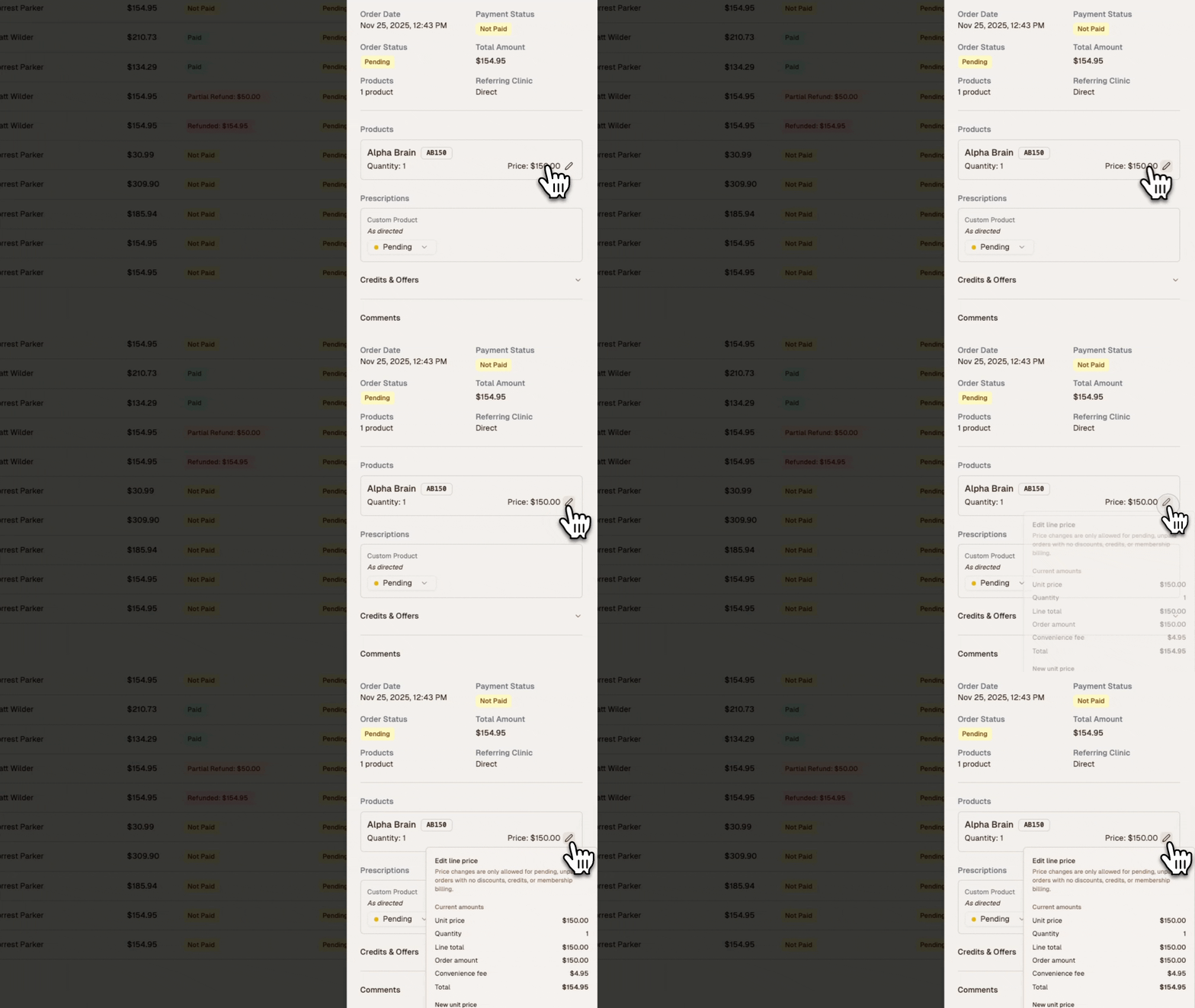 Changing Order Item Price
5. Enter New Price
Type the new price value you want to set for the item. Make sure to enter the price in the correct format (e.g., 150.00 for $150.00).
6. Add Reason (Optional)
Optionally define a reason for the price change, such as "price match", "discount", or "correction". This helps document why the price was modified.
7. Update the Price
Click "Update" after changing the price to save your changes. The order total will automatically update to reflect the new price.
8. Bill Patient
When you click "Bill Patient", you will see the updated price in the billing interface. The patient will only see this updated value in their receipt, not the original price.
Important Notes
- Price Changes: Price modifications will immediately update the order total after clicking "Update"
- Reason Field: Adding a reason (like "price match") is optional but recommended for audit trails
- Patient Receipts: When billing, patients will only see the updated price in their receipt, not the original price
- Order History: Price changes are tracked in the order history for audit purposes
- Permissions: Only users with appropriate permissions can modify order prices
Common Use Cases
- Price Corrections: Fix pricing errors that occurred during order creation
- Special Pricing: Adjust prices for promotional offers or special circumstances
Troubleshooting
- If the pencil icon is not visible, check that you have the necessary permissions to edit orders
- If the price field is not editable, ensure the order status allows for modifications
- If changes don't save, refresh the page and try again
- For orders that have already been processed or shipped, price changes may be restricted
- Scroll the order details panel if the price adjustment goes out of view
For additional support with order price modifications, contact our support team at support@joinemrg.com.